Configure SMTP Notification
You can use SMTP to send email messages to recipients using the Internet. This section provides information about how to configure SMTP notifications in Arcserve Backup.
Follow these steps:
- Open the Arcserve Backup Manager console.
- Navigate to Quick Start > Administration > Alert.
- The Alert Manager screen opens.
- From the left pane, navigate to Configuration > Default > SMTP.
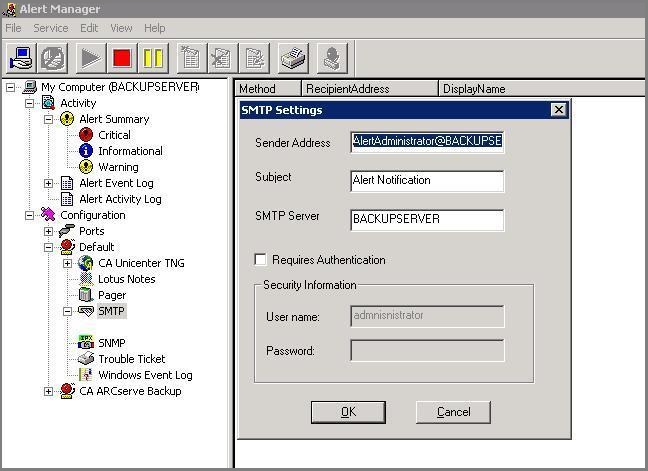
- Right-click SMTP and then select SMTP Settings.
- In the SMTP Settings dialog, specify the following details, and then click OK:
- None: 25 (default)
- SSL: 465 (default)
- TLS: 587 (default)
- Note: Each SMTP server has different port numbers. The port number may vary based on the SMTP server configuration.
-
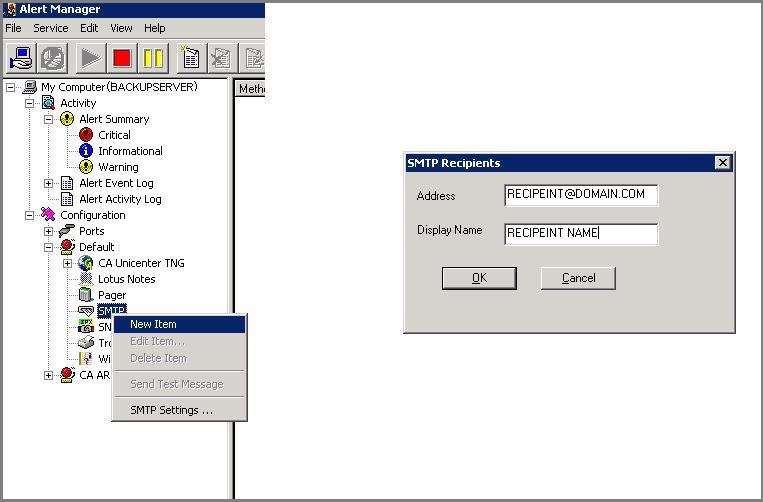
- After you configure the SMTP Settings, right-click SMTP, and then select New Item.
- In the SMTP Recipients dialog, specify the following details, and then click OK:
-
- The SMTP settings are configured successfully.
Sender Address
Specify the email address to receive the Arcserve Backup alerts.
Subject
Specify subject as required. The subject that you want the alert email to display in mailboxes.
SMTP Server
Specify the SMTP server details. For example, mail.yourcompany.com.
Port
Specify the following port number based on your requirement:
Requires Authentication
Specify the user name and password of the email address provided.
Address
Specify the email address for the recipient. For example, johnsmith@bigcompany.com.
Display Name
Specify the name for the recipient.