Arcserve Backup Home Page
The Home Page is the central location from which you can log into other Arcserve Backup servers and access all of the Arcserve Backup managers, wizards, and utilities.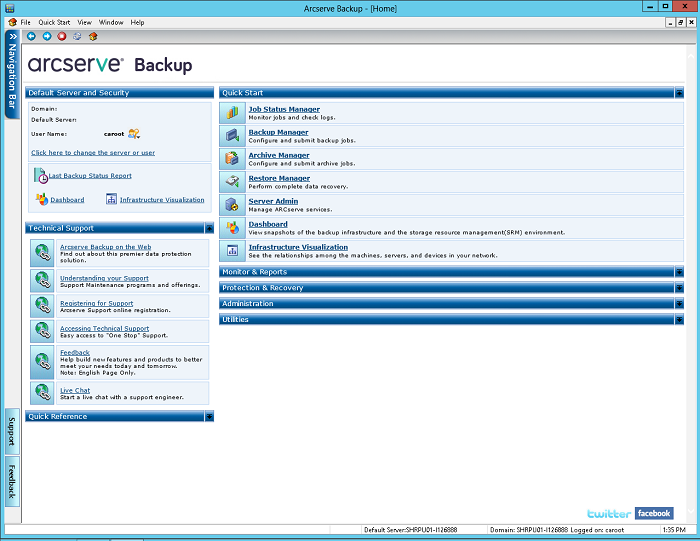
Default Server and Security
Displays the following information about the Arcserve Backup server:
- The Domain and Default Server that the current User name is logged into.
- View a summary of the user and the user's roles when a Windows user is logged into Arcserve Backup. Click the Role Information icon next to the User Name field to see the User Role list which includes all the roles owned by the user.
- View the Daily Backup Status Report.
- Start Arcserve Backup Dashboard.
- View Infrastructure Visualization
- View details if the Enterprise Module is not installed or if the license is expired. Click the link on the Home Page GUI to see the limitations.
Note: For information about how to change the default server and log into a different Arcserve Backup primary or stand-alone server, see Log On to Arcserve Backup.
Quick Start
Lets you open the following Arcserve Backup Managers:
- Job Status Manager--Lets you monitor jobs and view logs.
- Backup Manager--Lets you configure and submit backup jobs.
- Archive Manager--Lets you configure and submit archive backup jobs.
- Restore Manager--Lets you perform complete data recovery.
- Server Admin--Lets you manage Arcserve Backup engines. For example, the Database Engine, the Job Engine, and the Tape Engine.
- Dashboard--Lets you access a snapshot overview of your backup infrastructure.
- Infrastructure Visualization--Lets you view the relationships between the computers, servers, and devices in your Arcserve Backup environment.
Monitor and Reports
Lets you open the following managers and utilities:
- Job Status Manager--Lets you monitor jobs and view logs.
- Report Manager--Lets you perform complete data recovery.
- Report Writer--Lets you create custom Arcserve Backup reports.
- Dashboard--Lets you access a snapshot overview of your backup infrastructure.
- Infrastructure Visualization--See the relationships among the machines, servers, and devices in your network.
Protection and Recovery
Lets you open the following managers and wizards:
- Backup Manager--Lets you configure and submit backup jobs.
- Archive Manager--Lets you configure and submit archive backup jobs.
- Restore Manager--Lets you perform complete data recovery.
- Arcserve High Availablity--Lets you start or install Arcserve High Availablity. Arcserve High Availablity is a data protection solution that uses asynchronous real-time replication to provide disaster recovery capabilities. This link is active when you install Arcserve High Availablity. For information, see the Arcserve High Availablity Integration Guide.
- Arcserve UDP--Lets you start or install Arcserve UDP. Arcserve UDP is a backup solution that lets you track changes to data at the block level, and back up only the changed blocks. Arcserve UDP lets you perform frequent incremental backups, which reduces the size of the backups and provides you with up-to-date backup data.
Administration
Lets you open the following managers, wizards, and utilities:
- Server Admin--Lets you manage Arcserve Backup engines. For example, the Database Engine, the Job engine, and the Tape engine.
- Central Agent Admin--Lets you manage Arcserve Backup agents.
- Device Manager--Lets you manage the storage devices in your environment.
- Device Configuration--Lets you configure your storage devices in your Arcserve Backup environment.
- Device Wizard--Lets you perform media operations.
- Device Group Configuration--Lets you configure the device groups in your Arcserve Backup environment and select the groups that you will use for the staging of data.
- Media Pool--Lets you create and maintain media pools in your Arcserve Backup environment.
- Database Manager--Lets you manage and maintain the Arcserve Backup database.
- Alert Manager--Lets you create alert notifications about events that occur during a backup.
- User Profile--Lets the Arcserve Backup administrator manage user profiles and provide access to Arcserve Backup.
- Agent Deployment--Launches the Agent Deployment tool, which lets you install and upgrade Arcserve Backup agents on remote hosts.
- MM Admin--Lets you manage off-site media resources.
Utilities
Lets you open the following wizards and utilities:
- Job Scheduler Wizard--Lets you control Arcserve Backup command line utilities.
- Create Boot Kit--Lets you create disaster recovery boot disk sets. This link is active when you install the Arcserve Backup Disaster Recovery Option.
- Diagnostic Wizard--Lets you gather information from Arcserve Backup system logs. The information gathered can be used for troubleshooting and may help Arcserve Technical Support identify issues.
- Merge--Lets you merge session information from media into the Arcserve Backup database.
- Media Assure & Scan--Lets you gather information about the backup sessions on media.
- Compare--Lets you compare the contents of a media session to files on a computer.
- Count--Lets you count the files and directories on a computer.
- Copy--Lets you copy or move files from one hard disk to another.
- Purge--Lets you delete files and directories from a computer.
Note: For more information, see the Disaster Recovery Option Guide.
Technical Support
The Technical Support section provides quick access to the following support tools:
- Arcserve Backup on the Web--Links you to the Arcserve site that provides product information about Arcserve Backup.
- Understanding your Support--Provides maintenance and support information by product.
- Registering for Support--Provides an online form to register for Arcserve Support Online.
- Accessing Technical Support--Offers the latest Arcserve Backup news and information from Technical Support, including white papers, how-to documents, videos, forums and user groups, troubleshooting guides, patches, and more.