Restore Data at File Level Granularity
This topic describes how to restore data that was backed up using the backup modes that follow:
- File mode
- Raw mode with the Allow file level restore option specified
- Mixed mode with the Allow file level restore option specified
- Note: For more information, see How Global and Local Backup Options Work.
You can use these steps to perform restore operations on local disk-based virtual machines (VMs) and SAN-based VMs. You would restore file level data that was backed up on a VM when a file is corrupt or deleted in error, to recover a system from a disaster, or to clone a system. You use the same process to restore file level backup data as that of restoring any Windows-based client agent file.
Note: For more information about restoring data, see the Administration Guide.
When you restore file level backup data, consider the following:
- You can browse and restore data at directory and file granularity only if the data was backed up using the file level mode, the raw (full VM) backup mode with the Allow file level restore option specified, or the Mixed backup mode with the Allow file level restore option specified.
- Note: For more information, see How Global and Local Backup Options Work.
- The current version of the Client Agent for Windows must be installed on the destination system to restore data that was backed up using the Agent for Virtual Machines.
- When you restore data at file level granularity and specify Restore files to their original location, Arcserve Backup intentionally omits Windows system files. Windows system files are usually stored in the directories that follow:
- C:\WINDOWS\SYSTEM
- C:\WINDOWS\SYSTEM32
To restore data at file level granularity data
- Open the Restore Manager, click the Source tab, and select Restore by Tree from the drop-down list.
- Expand the Windows Systems object and browse to the data that you want to restore.
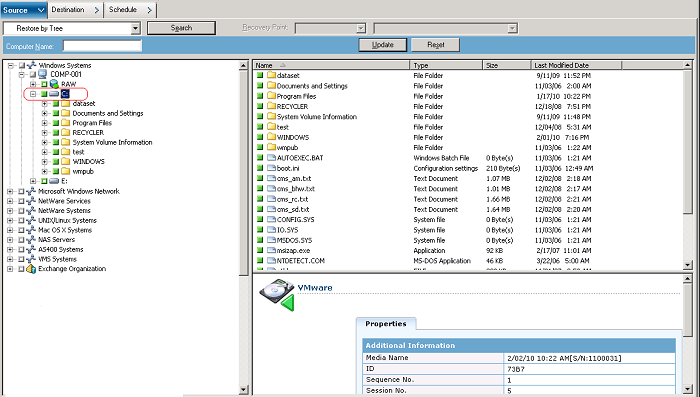
- Click the Destination tab. Click the Restore files to their original locations check box to restore the files to their original location.
- To restore files to their original location, the Client Agent for Windows must be installed on the VM. If the Client Agent for Windows is not installed on the VM, you can restore the data to any location and then copy the data manually to the VM using a network filesystem share.
- Note: When you restore data at file level granularity and specify Restore files to their original location, Arcserve Backup omits Windows system files.
- If the backup data was created from a raw (full-VM) backup, Arcserve Backup does not support the Restore files to their original location option.
- Click the Schedule tab and specify a schedule from the Repeat Method drop-down.
- Click Submit on the toolbar to submit the restore job.
- The Security and Agent Information dialog opens. To submit the job, you must provide login credentials for the system where you are restoring data.
- Specify your login credentials in the User name and Password fields and click OK.
- Arcserve Backup applies your security credentials and the Submit Job dialog opens.
- Complete the fields on the Submit Job dialog and click OK.
- The job is submitted.
- Note: For more information about Submitting Jobs, click Help on the Submit Job dialog. For more information about viewing job status and other job-related tasks, see the Administration Guide.