Browse Recovery Points in a Shared Folder
Arcserve® Cloud Console lets you view the details of recovery points and plans associated with the shared folders using the Browse Recovery Points option.
To navigate to the Browse Recovery Points screen, follow these steps:
- On the Shared Folders screen, do one of the following:
- From the list of shared folders, click the Action drop-down list of a shared folder, and then click Browse Recovery Points.
- From the list of shared folders, click the path of a shared folder.
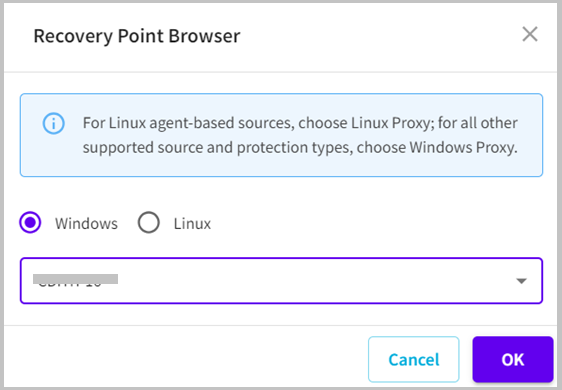
- The Recovery Point Browser dialog opens.
- Do one of the following, and then click OK:
- If you want to view recovery points of a Windows source, select Windows as a proxy server, and then select a source from the drop-down list as needed.
- If you want to view recovery points of Linux agent-based sources, select Linux as a proxy server, and then select a source from the drop-down list as needed.
-
- Note: Only those sources are displayed that are managed by the selected site.
- The recovery points screen displays.