Copy Recovery Points
This section explains about how to perform the copy recovery points job.
Follow these steps:
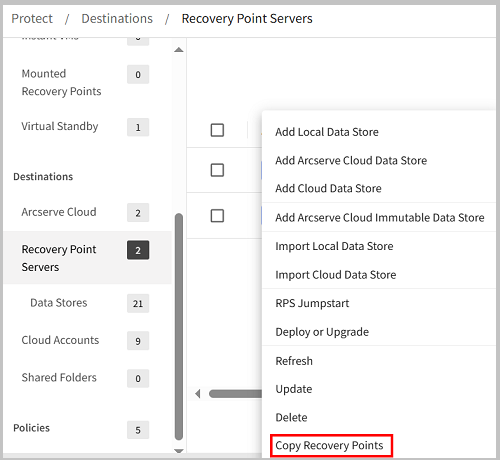
- Navigate to Protect > Destinations > Recovery Point Servers.
- The list of recovery point servers appears in the center pane.
- From the Action drop-down list of a recovery point server, select Copy Recovery Points.
-
- Wait until you get connected to the recovery point server.
- The Copy Source xx-xx-xx dialog opens.
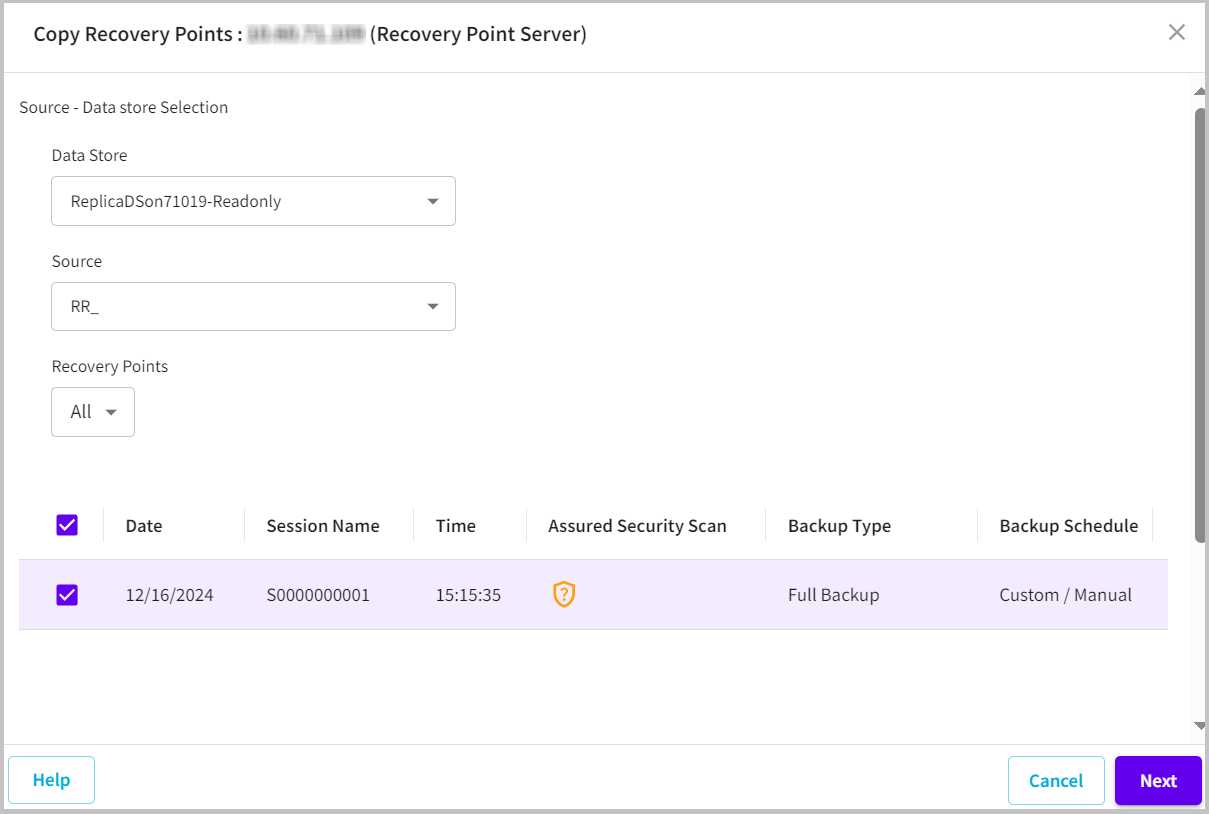
- On the Source - Data store Selection page, do the following, and then click Next:
- Data Store: Select the source data store from the drop-down list.
- Source: Select the source from the drop-down list.
- Recovery Points: Do one of the following:
- If you want all the recovery points you backed up to display, select All from the drop-down list.
- If you want the recovery points to display for a specific duration, select one of the following from the drop-down list:
- Last 7 days
- Last 30 days
- Last 60 days
- Custom
- Note: If you selected Custom, set the date on Recovery points from and Recovery point to fields.
- All the associated recovery points between the specified duration are displayed.
- From the table, click the check boxes to select one or more recovery points.
-
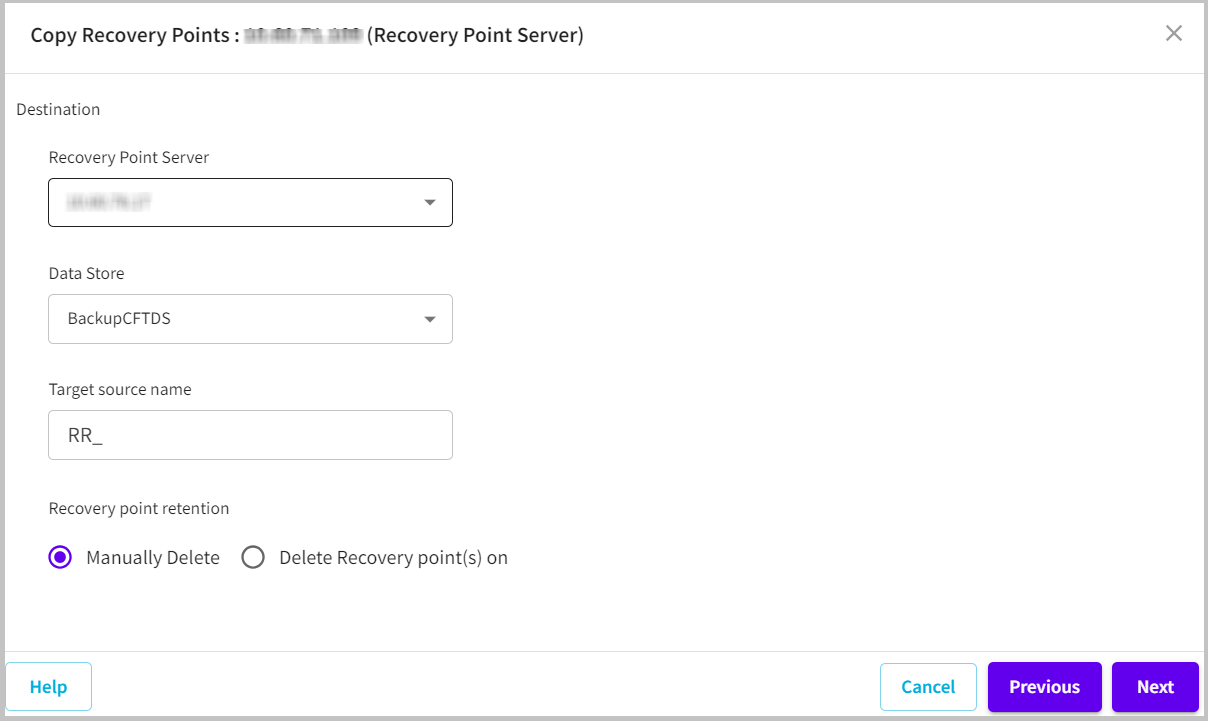
- On the Destination page, do the following, and then click Next:
- Recovery Point Server: Select the destination recovery point server from the drop-down list.
- Data Store: Select the destination data store from the drop-down list.
- Target source name: Type a target source name of your choice.
- Recovery point retention: Delete the recovery points in one of the following ways:
- To delete recovery points manually, select Manually Delete option.
- If you want the recovery points to get deleted automatically, select the Delete Recovery point(s) on option, and then specify the date. All the recovery points corresponding to that date get deleted automatically.
-
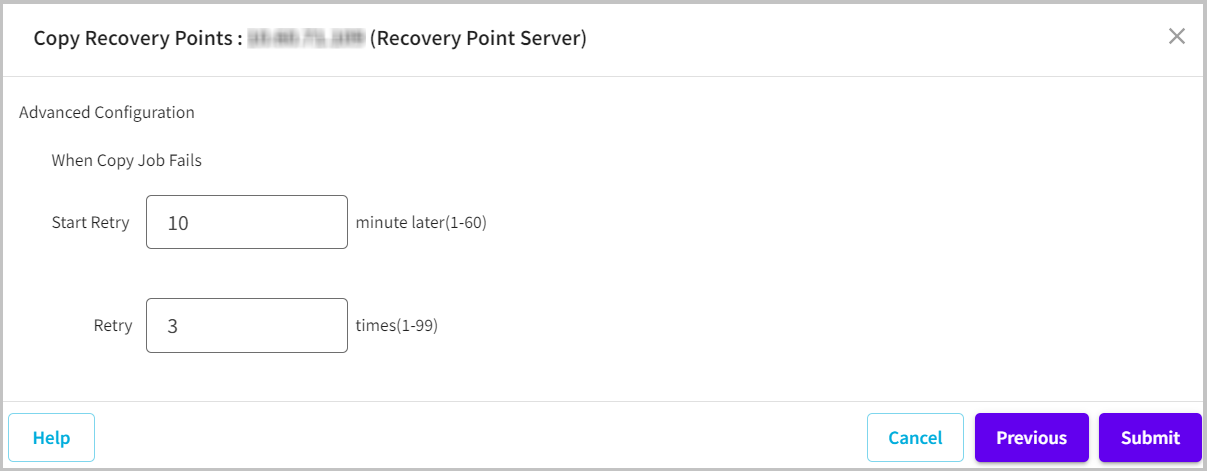
- On the Advanced Configuration page, specify the following retries on the Copy job after its failure:
- Start Retry
- Lets you specify the time (in minutes) to restart the Copy job after the job fails. For example, if you specify 10 minutes, then the Copy job restarts after 10 minutes of its failure.
- Limit: 1 to 60
- Retry
- Lets you specify the number of retries that you want to perform if the Copy job fails. The Copy job runs until the job is successful, or until the limit is reached. After the number of retries is over, the Copy job runs only at the next scheduled time.
- Limit: 1 to 99
-
- Click Submit.
- Note: If you want to change the settings of the previous screens, click Previous, and then change the setting as needed.
- The Copy Recovery Points job is submitted successfully.