Run an Assured Security - Malware Scan from the Data Stores Page
This section provides information about how to run an Assured Security - Malware Scan from the Data Stores page.
Follow these steps:
- Navigate to Protect > Destinations > Data Stores.
- On the Data Stores screen, from the list of data stores, click the Action drop-down list of a data store, and then click Browse Recovery Points.
- The Browse Recovery Points screen appears.
- Click the Action drop-down list of a recovery point for which you want to perform an Assured Security - Malware Scan, and then click Run Assured Security - Malware Scan.
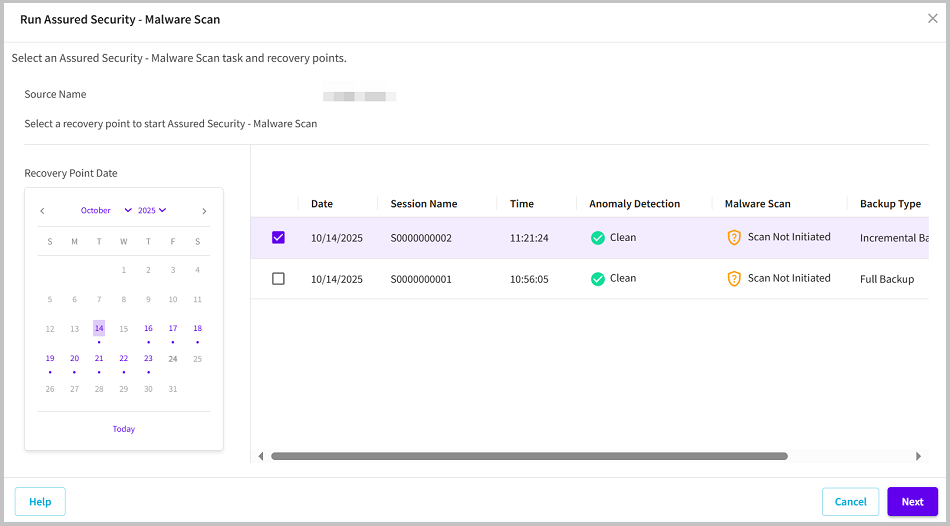
- The Run Assured Security - Malware Scan dialog appears.
- From the Recovery Point Date section, select a date.
- The corresponding recovery points for that date display with date, session name, time, backup type, and the backup schedule.
- Select a recovery point for the Assured Security - Malware Scan, and then click Next.
-
- Note: If the recovery point you are attempting to access is encrypted, the Recovery Point Access dialog opens and prompts you to enter the encryption or session password.
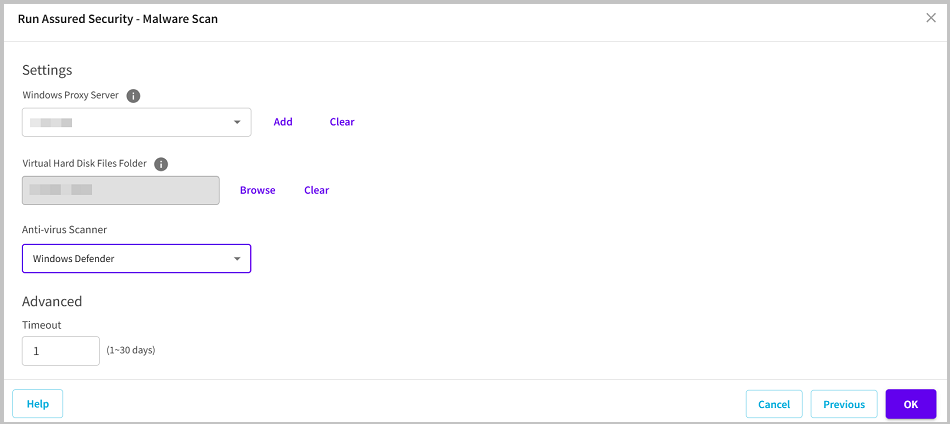
- Specify the following details, and then click OK.
- Windows Proxy Server: Do one of the following:
- If you have already added a proxy server to the selected Site in the Console, select a proxy server from the Windows Proxy Server drop-down list.
- If you have not added any proxy server, perform the following steps:
- Click Add.
- The Add Proxy server dialog opens.
- From the Site drop-down list, select the desired site.
- For Hostname/IP Address, type the host name or the IP address.
- Type the username and password as needed.
- Click Save.
- Virtual Hard Disk Files Folder: Click Browse, navigate to the folder where the virtual hard disk file is located, select the folder, and then click Select.
- Anti-virus Scanner: From the drop-down list, select Windows Defender as an anti-virus scanner.
- Timeout: Specify the maximum time the proxy server can wait for the item to complete its scan. The value of timeout is specified in days (1-30).
-
The Assured Security - Malware Scan starts successfully.