Modify Arcserve Cyber Resilient Data Store
This section describes how to modify an Arcserve Cyber Resilient data store.
You can modify an existing Arcserve Cyber Resilient data store. However, the following settings cannot be changed:
- Data Store folder
- Arcserve Cyber Resilient Storage Account
- Pool Name
- Filesystem
- Port Number
- Enable Deduplication
- Index Destination
- Hash Destination
- Enable Compression
Follow these steps:
- Navigate to Protect > Destinations > Data Stores.
- From the Action drop-down list of an Arcserve Cyber Resilient data store, select Modify Arcserve Cyber Resilient Data Store.
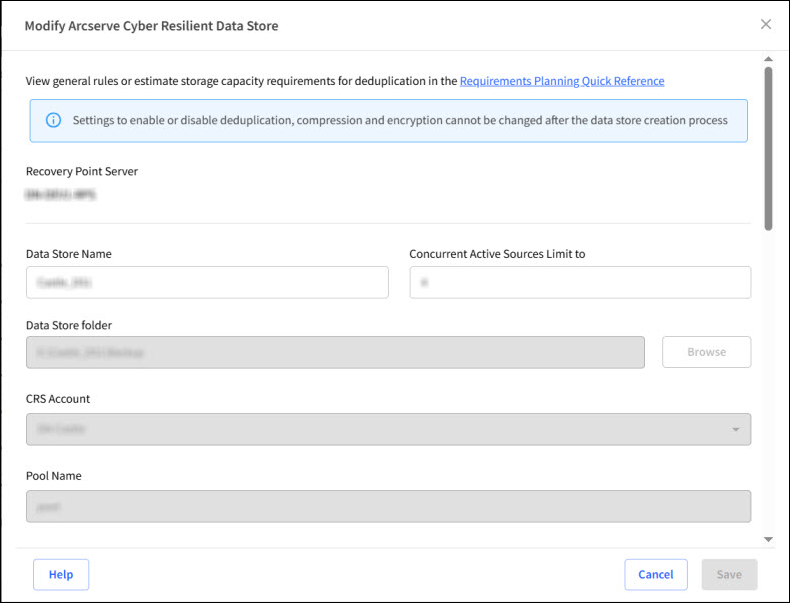
- The Modify Arcserve Cyber Resilient Data Store dialog opens.
-
- Update the details as needed, and then click Save.
- Data Store Name: Specifies the name of the data store.
- Concurrent Active Sources Limit to: Limits the maximum number of concurrent jobs allowed on the data store to the specified value.
- Default Value: 4
- Refers to a value from 1 to 9999. The value indicates the number of jobs that can concurrently run. If the running jobs meet the number, another job is placed into the queue and the job can only start when one of the running jobs is complete. The completed job could mean a finished, canceled, or failed job. The number applies to the Job Types but not to the Server sources. For example, number 5 indicates that five backup jobs are running. Any job scheduled after five backup jobs waits in the queue, but you can submit another job such as File System Catalog.
- If the value exceeds 16 or 32, a warning message appears indicating increased demand on hardware.
- Note: The concurrency limit only impacts the replication outbound job, not the replication inbound, Restore or BMR jobs. These jobs are not placed in a queue.
- Hash Memory Allocation: Specifies the amount of physical memory allocated to store hashes. This field is pre-filled with a default value. The default value is based on the following calculation:
- If the physical memory of the RPS is less than or equal to 4 GB, the default value of the Hash Memory Allocation is the same as the physical memory of the RPS.
- If the physical memory of the RPS is greater than 4 GB, Arcserve UDP calculates the available free memory. Assume that the available free memory is X GB at present. Arcserve UDP further checks the following conditions:
- If (X * 80%) > = 4 GB, the default value of Hash Memory Allocation is (X * 80%).
- If (X * 80%) 4 GB, the default value of Hash Memory Allocation is 4 GB.
- Example: Consider an RPS with 32 GB of physical memory. Assume that the operating system and other applications use 4 GB memory while creating the data store. So, the available free memory at this time is 28 GB. So the default value of Hash Memory Allocation is 22.4 GB (22.4 GB = 28 GB * 80%).
- Immutable Snapshot Schedule Frequency: Allows you to schedule daily, weekly, and monthly snapshots and set a retention period for those snapshots, ensuring the snapshots are taken regularly and remain unchangeable for a specified duration.
- Daily: Creates snapshots for a specified time each day.
- Snapshot Time: Set a time at which you want the snapshot to be taken.
- Retention Period in Days: Define how long a snapshot can be retained before it is automatically deleted.
- Note: To optimize storage consumption, Arcserve recommends that you use a retention period of less than or equal to 7 days or use weekly snapshots instead of retaining daily snapshots for more than 7 days.
- Weekly: Creates snapshots for a specified day of the week.
- Run Schedule Day: Select a specific day of the week on which you want the snapshot to be taken.
- Snapshot Time: Set a time at which you want the snapshot to be taken.
- Retention Period in Weeks: Define how long a snapshot can be retained before it is automatically deleted.
- Note: To optimize storage consumption, Arcserve recommends that you use a retention period of less than or equal to 5 weeks or use monthly snapshots instead of retaining weekly snapshots for more than 5 weeks.
- Monthly: Creates snapshots for a specified day or week of the month.
- Start Day/Week: From the drop-down list, select one of the following as needed:
- Day: Select a specific day of the month or the last day on which you want the snapshot to be taken.
- Week: Select First or Last week as needed, and then select a specific day of the week on which you want the snapshot to be taken.
- Snapshot Time: Set a time at which you want the snapshot to be taken.
- Retention Period in Months: Define how long a snapshot can be retained before it is automatically deleted.
- Note: To optimize storage consumption, Arcserve recommends that you use a retention period of less than or equal to 12 months.
- Notes:
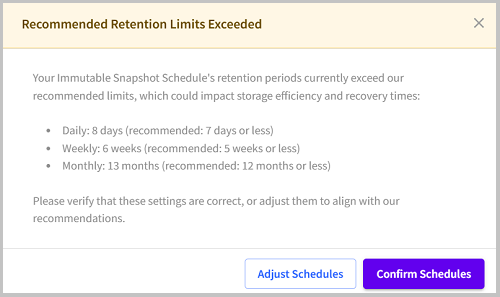
- If you set the retention period for daily, weekly, and/or monthly immutable snapshots to be longer than the recommended limits, and then you click Save, the Recommended Retention Limit Exceeded dialog appears. If you want to go back and update settings as per the recommended values, click Adjust Schedules. Otherwise, click Confirm Schedules to proceed with the current settings.
-
- By default, the snapshot time for all the daily, weekly, and monthly schedules is set to 2 AM. If you proceed with this default snapshot time, the snapshots with lower frequency such as weekly or monthly might overlap with daily snapshots. To avoid this, Arcserve recommends that you configure different snapshot times for different frequencies (daily, weekly, and monthly).
- Enable Encryption: Specifies that encryption settings are enabled.
- Note: You cannot enable or disable encryption after the Arcserve Cyber Resilient data store is created. If you have enabled encryption while adding the data store, you can change the encryption password. To change, specify and confirm the encryption password.
The Arcserve Cyber Resilient Data Store is modified successfully.