View Assured Security - AI Anomaly Detection Results from the Sources Page
This section provides information about how to view the Assured Security - AI Anomaly Detection results from the Sources page.
Follow these steps:
- Log into Cloud Console.
- Navigate to Protect > Sources.
- From the Action drop-down list of a source for which you want to view the Assured Security - AI Anomaly Detection results, click View Assured Security - AI Anomaly Detection Results.
- Specify the following:
- Recovery Point Server: Select the associated recovery point server.
- Data Store: Select the data store where the backup is saved.
- On the Date column, expand one of the time frames (Latest, Today, Yesterday, Last 7 Days, Last 30 Days, or Older than 30 Days) as desired.
- To view the Assured Security - AI Anomaly detection results, check the Anomaly Detection column for the selected recovery point.
- The Anomaly Detection column displays the following four types of status messages:
- Anomaly Detected: The anomaly check is completed and anomalies found. Click the link to download details (JSON) and review them to secure the recovery point.
-

- Scan Not Initiated: The recovery point is not scanned for anomalies.
-
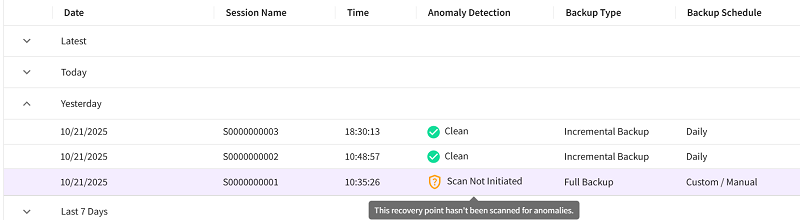
- Clean: The anomaly check is complete, and no anomalies are found. The recovery point is clean and secure.
-

- Scan Failed: The anomaly check is incomplete. Retry or check your system settings.
-
