Activate ShadowStream
Arcserve licenses ShadowStream on a per-job basis. Each ShadowStream job supports one Remote Replication (Off-site) job using ShadowStream. ShadowStream jobs can be reassigned to a different folder or to a different agent as needed. See ShadowStream User Guide for details.
Note: You can purchase as many ShadowStream jobs as needed, but each product key is activated for only a single ImageManager console. You cannot purchase a ShadowStream license and then move its job operations among multiple ImageManager consoles.
To activate ImageManager premium features
- In the Configuration pane of the ImageManager console, click Licensing.
-
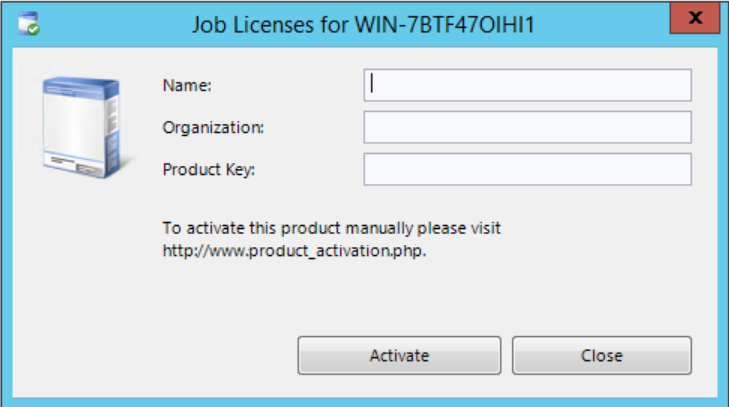
- In the job licenses dialog box, provide the requested information, then click Activate.
- Name: (Optional) Specify the name of the product purchaser.
- Organization: (Optional) Specify the name of the company.
- Product Key: Enter the Product Key for purchased ShadowStream jobs.
- ImageManager communicates with the Arcserve Licensing server.
- If the activation is successful, click OK.
- If the activation was not successful, review the message to determine why it failed. To correct the problem:
- Review the information accuracy in the Job Licenses dialog box. Correct any errors, then click Activate to resubmit the activation request.
- If your computer cannot successfully communicate to the activation server or the Internet, wait for a while and try the activation process again. If you continue to have problems activating these features, Contact Support.
You can also activate manually by going to the Arcserve Product Activation page if automatic activation can't be done.