Configure Notifications
ImageManager can automatically send email notifications when specific events occur.
To modify the notification settings
- In the ImageManager console, select the ImageManager agent that you want to configure.
- In the Connected Agents Panel, click Notification Settings.
- In the Notification Settings dialog box, select the Conditions tab.
-
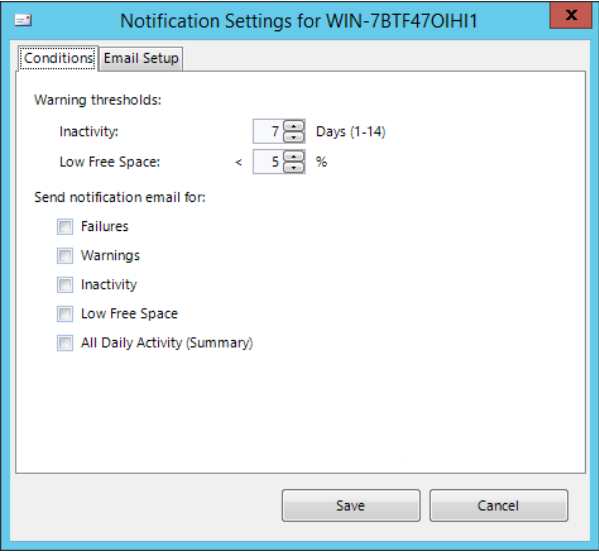
- In the upper section of the Conditions tab, select the Warning thresholds.
- In the lower section of the Conditions tab, select the events to generate email notifications.
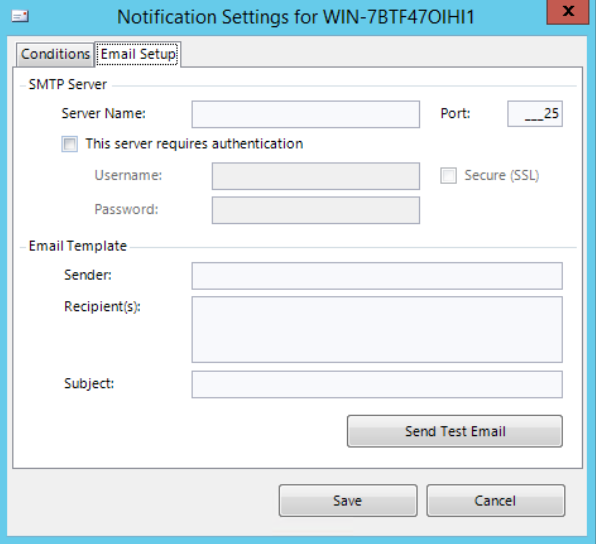
- Select the Email Setup tab in the Notification Settings dialog box.
- Note: See the KB article SPX and ImageManager - Supported ports and security settings in Email Configuration for information about the supported ports and security settings needed to receive email notifications.
-
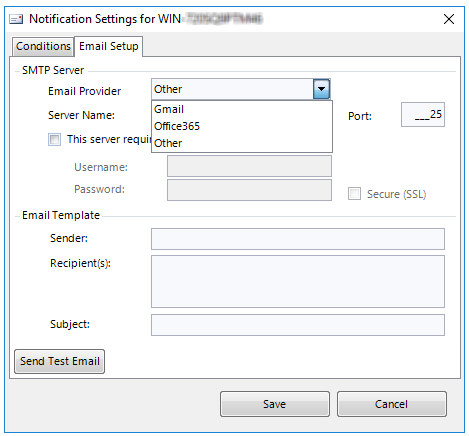
- Select the Email Provider from the drop-down menu.
-
Inactivity
Display a warning icon on the folder if there are no new image files added to the managed folder within the specified time. (1-14 days).
Low Free Space
Display a warning icon on the folder if the amount of free space drops below the specified percentage. (1-40%)
Failures
Send an email when an ImageManager operation fails.
Warnings
Send an email when ImageManager needs attention to prevent a failure.
Inactivity
Send an email when the ImageManager agent is inactive for the specified number of days.
Low Free Space
Send an email when the space available in the managed folder drops below the Warning threshold specified above.
All Daily Activity
Send a daily email with a summary of the ImageManager operations.