Managed Folder Context Menu
Access the Managed Folder Context Menu by right-clicking on a managed folder or one of the activities listed below. Some options are only available at the subfolder level. When appropriate, the same icons also appear in the Folder Management Pane.
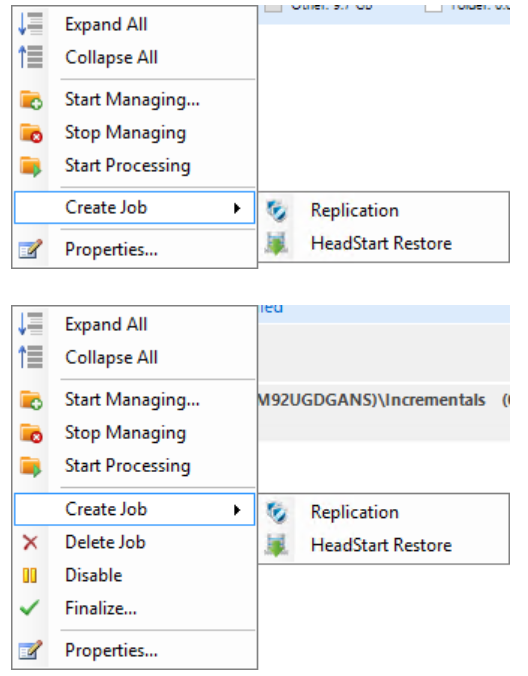
|
Link |
Function / Description |
 Expand All Folders Expand All Folders |
Expand the view to display all Backup Shares, Folders, and Subfolders and their associated activities. |
 Collapse All Folders Collapse All Folders |
Collapse the view to hid all subfolders and activities. |
 Start Managing Folder Start Managing Folder |
Select the storage locations for backup image files and start managing them with ImageManager. (See Start Managing Folder on the Managed Folder Settings page). |
 Stop Managing Folder Stop Managing Folder |
Stop managing the selected folder and remove it from the Managed Folder window. |
 Start Processing Start Processing |
Begin processing the selected folder. |
| Create Job | (Only visible from the subfolder level) |
 Replication Replication |
Click here to begin creating a network, iFTP, or ShadowStream Replication job. |
 HeadStart Restore HeadStart Restore |
(Only visible from the subfolder level) |
 Delete Job Delete Job |
Deletes a Replication or HeadStart Restore job. |
 Disable Disable |
Temporarily pauses an activity (Verification, Consolidation, or Retention) or job (Replication or HeadStart Restore). |
 Enable Enable |
Resumes a previously paused activity or job. |
 Finalize... Finalize... |
Opens the Finalize dialog box, where you can prepare the selected HSR target for use once the restoration process is complete (see Finalizing a HeadStart Job). |
 Properties... Properties... |
Opens the settings for the specified activity or job. |