Deactivate Arcserve UDP License Offline
Important! You can deactivate your Arcserve product offline only if the product is activated using offline method.
Follow these steps:
- Log into the Arcserve UDP Console.
- Click Help and select Activation and Licensing.
- The Activation and Licensing dialog opens.
- Click Deactivate Offline.
- The confirmation dialog appears.
-
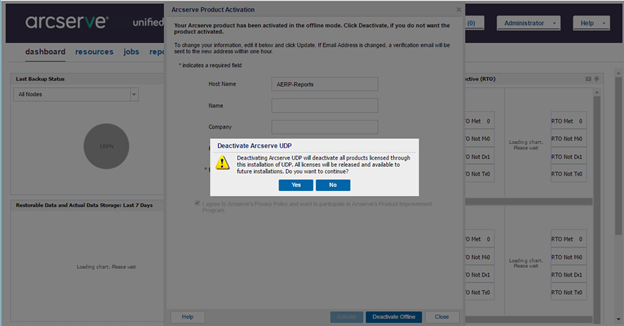
- Click Yes on the confirmation dialog for deactivating offline.
- An offline.arc file is saved at the following location:
- C:\Program Files\Arcserve\Unified Data Protection\Management\Configuration
- Log into the same URL used for the offline activation process and upload the offline.arc file.
-
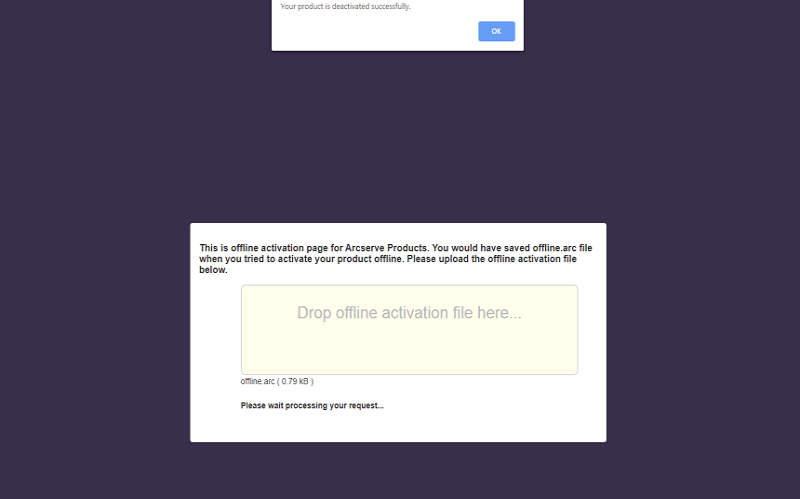
Note: If the product was activated using online method, then instead of confirmation dialog, you will receive the following message:

The following pop-up message appears:
Your product is deactivated successfully.
Note: Depending on the type of browser used, the position of the pop-up message on screen may change.
To verify the deactivated license in Arcserve UDP Console, navigate to Activation and Licensing window and view the Product Activation tab.