Having a OneXafe Cluster join Active Directory
To have a OneXafe Cluster join Active Directory
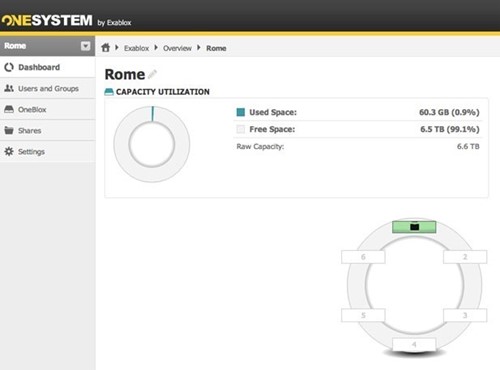
- Navigate to the desired Cluster and then select ‘Settings’ on the left-hand navigation.
-
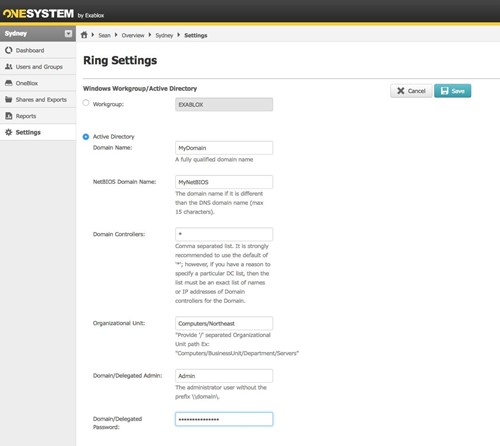
- Select the Edit button on the right-hand side to enter the appropriate Active Directory credentials.
- Enter the required information and save settings. See the Ring Settings example below:
- Note: When registering with Active Directory, the default ‘*’ can be used by OneXafe to search for all domain controllers. It can be advantageous to specify one or two local domain controllers for OneXafe to access instead of using domain controllers located in another location.
- If registering OneXafe with Active Directory, it’s important that the DNS and NTP addresses be the same as the Active Directory domain controller. Delete all default DNS and NTP addresses. These are cluster wide settings. See the Microsoft KB for Win 2012 for information on how to configure an authoritative time server in Windows server 2012. See the KB article for Windows Server 2016 if you are using Server 2016. See also the Cluster-Wide image below from the web console for the cluster-wide network settings. This image also includes the NTP and DNS settings.
- Note: Please refer to Network Settings for more details.
You will receive a message indicating that OneXafe successfully joined AD or that OneXafe failed to join AD. If there was an error, one of the following messages will be displayed:
Copy
kinit: Generic pre authentication failure while getting initial credentials
kinit: Cannot contact any KDC for realm ‘$FQDN’ while getting initial credentials
kinit: Client not found in Kerberos database while getting initial credentials
Some possible causes for the error are:
- Cannot find a domain controller
- Mistyped Domain Administrator password
- Misspelled NetBIOS Domain Name
Possible solutions to resolve error(s):
- Specify domain controller(s) by IP address or FQDN
- $ip_dc1, $ip_dc2, $ip_dc3
- Example: 10.10.1.2, 10.10.1.3, 10.10.1.4
- Re-enter Domain Administrator password
- Confirm credentials or password is correct
- Confirm NetBIOS Domain Name