Getting a Trial Key and Activating SPX
Arcserve provides a 30-day trial license with SPX. Restoration and functionality is no different than a fully licensed SPX install, with the exception of system volume restores. To test restoring a system volume, download the Recovery Environment. Even after the trial license expires, backup images created with the trial version of SPX remain compatible with any licensed SPX software.
To activate the trial version, follow these steps:
- Launch SPX and login to the console using your Windows credentials.
-
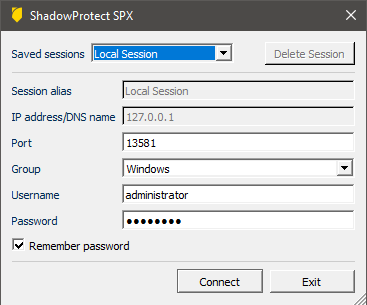
- SPX automatically displays the SPX License Required dialog after you login.
-
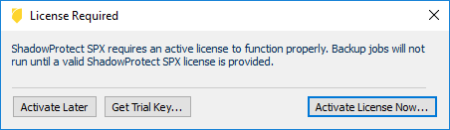
- Click Get Trial Key.
- This displays the SPX Trial Form.
-
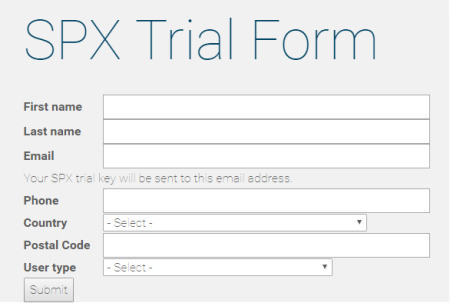
- Fill in the fields and click Submit.
- Arcserve sends the trial key to email address you entered in the SPX Trial Form.
- Click Activate License Now. SPX opens a Product Activation dialog. (The SPX Help menu also has an activation option to display this dialog.)
- Enter the key into the dialog.
- Click Activate to start the 30-day trial.
Note: Use the same Product Activation dialog to enter a purchased Perpetual license.