View Assured Security - AI Anomaly Detection Results
This section provides the information about the Assured Security - AI Anomaly Detection results. You can view the anomaly detection results from the Nodes view, Data stores view, Recovery Point Server and Assured Security Proxy Machines.
 Node View
To view the status of the Assured Security - AI Anomaly Detection from the node view, follow these steps:
- On the UDP Console, click the resources tab.
- From the left pane, navigate to Nodes > All Nodes.
- From the Actions drop-down list of a node that you want to view status of the Anomaly detection, select View Assured Security - AI Anomaly Detection Results.
- Specify the following:
- Recovery Point Server: Select the associated recovery point server.
- Data Store: Select the data store where the backup is saved.
- On the Date column, expand one of the time frames (Latest, Today, Yesterday, Last 7 Days, Last 30 Days, or Older than 30 Days) as desired.
- To view the Assured Security - AI Anomaly Detection results, check the Anomaly Detection column for the selected recovery point.
- The Anomaly Detection column displays the following four types of status messages:
- Anomaly Detected: The anomaly check is completed and anomalies found. Download the details (JSON) and review them to secure the recovery points.
-

- Scan Not Initiated: The recovery point is not scanned for anomalies.
-

- Clean: The anomaly check is complete, and no anomalies are found. The recovery point is clean and secure.
-

- Scan Failed: The anomaly check is incomplete. Retry or check your system settings.
-

Data Store View
To view the status of the Assured Security - AI Anomaly Detection from the data store view, follow these steps:
- On the UDP Console, click the resources tab.
- From the left pane, navigate to Destinations > Recovery Point Servers.
- The Destinations: Recovery Point Servers page appears.
- On the Data Stores screen, from the list of data stores, click the Action drop-down list of a data store, and then click Browse Recovery Points.
- The Browse Recovery Points screen appears.
- On the Recovery Points page, select a node that you want.
- The Summary > <node name> screen appears.
- On the Date column, expand one of the time frames (Today/Yesterday/Last 7 Days/ Last 30 Days/ Older than 30 Days) as desired and then select the Recovery Point.
- To view the Assured Security - AI Anomaly Detection results, check the Anomaly Detection column for the selected recovery point.
- The Anomaly Detection column displays the following four types of status messages:
- Anomaly Detected: The anomaly check is completed and anomalies found. Download the details (JSON) and review them to secure the recovery points.
-
- Scan Not Initiated: The recovery point is not scanned for anomalies.
-
- Clean: The anomaly check is complete, and no anomalies are found. The recovery point is clean and secure.
-
- Scan Failed: The anomaly check is incomplete. Retry or check your system settings.
-
Shared Folders View
To view the status of the Assured Security - AI Anomaly Detection from the Shared Folders view, follow these steps:
- On the UDP Console, click the resources tab.
- From the left pane, navigate to Destinations > Shared Folders.
- The Destinations: Shared Folders page appears.
- Select the desired shared folders path and then click OK on the Recovery Point Browser dialog.
- On the Recovery Points page, select a node that you want.
- The Summary > <node name> screen appears.
- On the Date column, expand one of the time frames (Today/Yesterday/Last 7 Days/ Last 30 Days/ Older than 30 Days) as desired and then select the Recovery Point.
- To view the Assured Security - AI Anomaly Detection results, check the Anomaly Detection column for the selected recovery point.
- The Anomaly Detection column displays the following five types of status messages:
- Anomaly Detected: The anomaly check is completed and anomalies found. Download the details (JSON) and review them to secure the recovery points.
-
- Scan Not Initiated: The recovery point is not scanned for anomalies.
-
- Clean: The anomaly check is complete, and no anomalies are found. The recovery point is clean and secure.
-
- Scan Failed: The anomaly check is incomplete. Retry or check your system settings.
-
Agent UI Restore View
To view the status of the Assured Security - AI Anomaly Detection from the Agent UI Restore view, follow these steps:
- Access the restore method selection dialog in one of the following ways:
- Log into Arcserve UDP Console.
- Navigate to resources > Node > All Nodes.
- Click the Action drop-down list of a node for which you want to restore, and then click Restore.
- Log into Arcserve UDP Agent (Windows).
- From the home page, select Restore.
- On the Restore dialog, click the Browse Recovery Points option.
-
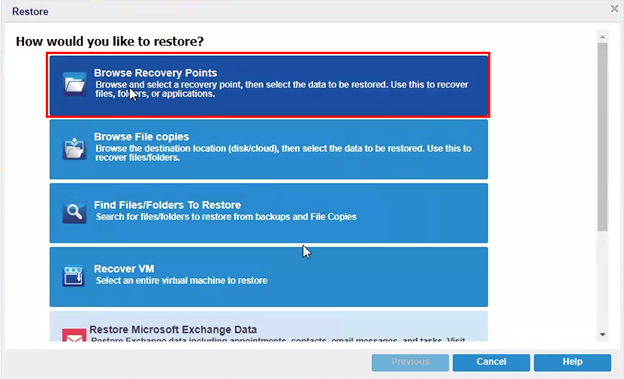
- On the Browse Recovery Points page, select a Recovery point from the calendar available on the left side.
- To view the Assured Security - AI Anomaly Detection results, check the Anomaly column for the selected recovery point.
From Arcserve UDP Console:
All the added nodes are displayed in the center pane.
You are automatically logged into the agent node console, and the Restore dialog is opened.
From Arcserve UDP Agent (Windows):
The Restore dialog opens.

Logs
To view the status of the Assured Security - AI Anomaly Detection from the logs view, follow these steps:
- On the UDP Console, click the log tab.
- Select the Job Type as AI Anomaly Detection and specify the Node name for which you want to know the Anomaly detection status.
- The log results are displayed for that Node.
- To view the status of the scan, check the Message column.
- The Assured Security - AI Anomaly Detection displays the following types of status messages:
- Failed: The recovery point is found with anomalies and job is failed.
-

- Successful: The recovery point is clean, and job is successfully completed.
-

- Skipped: The job is skipped as there is no new session or when there is an active Assured Security - AI Anomaly Detection job running.
- Canceled:
- The job is canceled due to action of the user.
- The job is canceled as the data store is stopped.
-


RPS Machine
You can find the AnomalyDetectionResult file for every Recovery Point session in the following path: <DatastoreCommonpath>\NodeName[NodeID]\Vstore\SessionNumber

Assured Security Proxy Machine
You can find the log information of the Assured Security - AI Anomaly Detection for every Recovery Point session in the following path:
<UDPHOME>\Engine\Logs
The file name format is AnomalyDetectionDll-(NodeName)-(SessionNumber)-JID(JobID)-PID(ProcessID)