dashboard
The dashboard tab lets you view graphical representation of the latest task status and data storage of the last seven days. Using the dashboard tab, you can perform the following action:
- View the time of the last update. Clicking the Refresh icon displays the latest data on the dashboard.
- Clicking the RTO bar chart opens directly the RTO Reports Page.
- View the last task status of nodes or plans according to the filters you select in the Last Task Status chart.
- Successful indicates that the nodes are successfully backed up.
- Failed indicates that the last backup is not successful.
- Canceled indicates that the last backup was stopped.
- Missed indicates that the last backup was not performed as scheduled.
- Not Connected indicates that the Arcserve UDP Console failed to connect to the node.
- Incomplete indicates that the restore job was not complete.
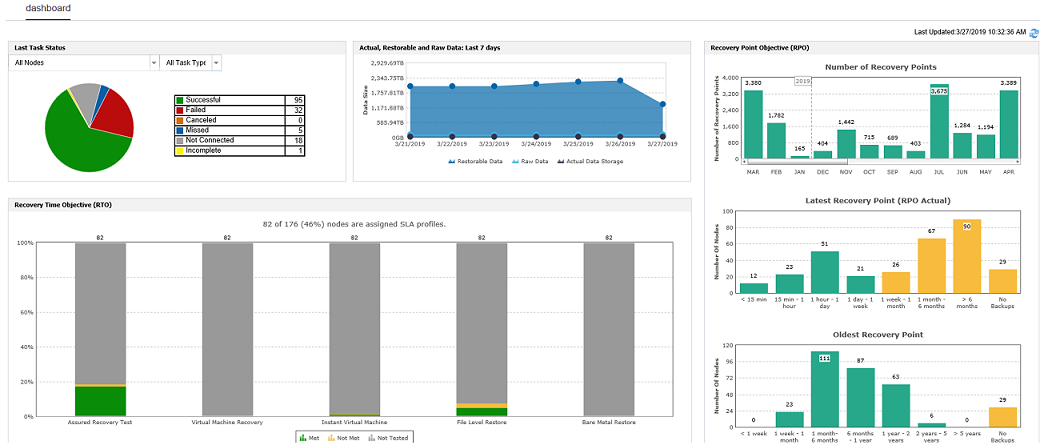
You can view the graphs for the following options on the dashboard tab:
Last Task Status
Last Task Status refers to the latest task status and provides you multiple filters to view the status. Based on your selection from the filter option, you can view the last task status. For example, select All Nodes to see the last task status of all nodes or select any plan to see the last task status of the nodes protected by this plan. Then, filter further with a specific task type. When you select All Nodes, you can see the following status:
When you click each slice (the status) from the pie chart, the resources page opens and the associated nodes are displayed. For example, if you click Successful from the pie chart, the resources page opens. The resources page displays the nodes that do not have any plan. Also, the Successful filter is preselected on the resources page.
Actual, Restorable and Raw Data Size: 7 days
The graph refers to the Raw Data vs Restorable Data vs Actual Data Storage of the last seven days.
Restorable Data Size
Refers to the size of data that you can restore from the data stored on all target storage that day. Regardless of the backup type, full backup or incremental backup, every recovery point is used to restore a full source. This size is the total size of all available size of restored source.
For example: If Raw data size is 30 GB and after compression and Deduplication, the size is 22 GB and Restorable data is 30 GB for the first full backup. For a change of 4 GB incremental change, the Restorable data size is 30+34 GB= 64 GB.
Actual Data Storage Size
Refers to the size of the final data. After compressing the raw data and removing duplicated data blocks from the raw data and adding some metadata, the raw data becomes the final data and is saved to the target storage.
Raw data Size
Refers to the data read from the source and transferred to the target.
SLA Report for RTO and RPO
Arcserve UDP introduces Service Level Agreement (SLA) report to help organizations generate compliance reports related to Recovery Point Objective (RPO) and Recovery Time Objective (RTO).
RTO Report
Arcserve UDP RTO report is a compliance report that displays the comparison of Recovery Time Actual and Recovery Time Objective values for all the executed recovery type of jobs such as File system restore, VM recovery, BMR, Instant VM, and Assured Recovery. The Bar chart uses multiple colors to display status of jobs. You can further drill-down to see node level status filtered by RTO met, not met, not tested, and not defined status.
RPO Report
Arcserve UDP RPO report displays the total number of nodes with available recovery points during the specified time period in the bar view categorized by Age of latest recovery points (15 minutes, last hour, 12 hours, last day, and so on), Age of oldest recovery points (30 days and older), and monthly distribution (Jan - Dec). You can further drill-down to see node level status for the selected category.
Note: From dashboard, you can directly view the RPO report of a specific month. The report gets populated directly from Arcserve UDP Dashboard. Clicking inside the RPO bar graph on a month at Dashboard displays RPO report screen for that specific month on the RPO screen.