Specify Email Settings
On the Email Settings dialog, you can specify the following email settings:
- Mail server
- Subject title
- Email senders
- Email recipients
You can also enable and define your proxy settings. These settings apply to all email alert notifications and can be modified at any time.
After you establish your email settings, you can test the settings using the Test Email button. After a job runs successfully or fails, you will not receive an email alert if you have provided the invalid settings. Therefore, testing the email information that you have provided validates the settings and tries to send an email using the specified settings. If the email settings are valid, you receive success message. Otherwise, you receive a failure message.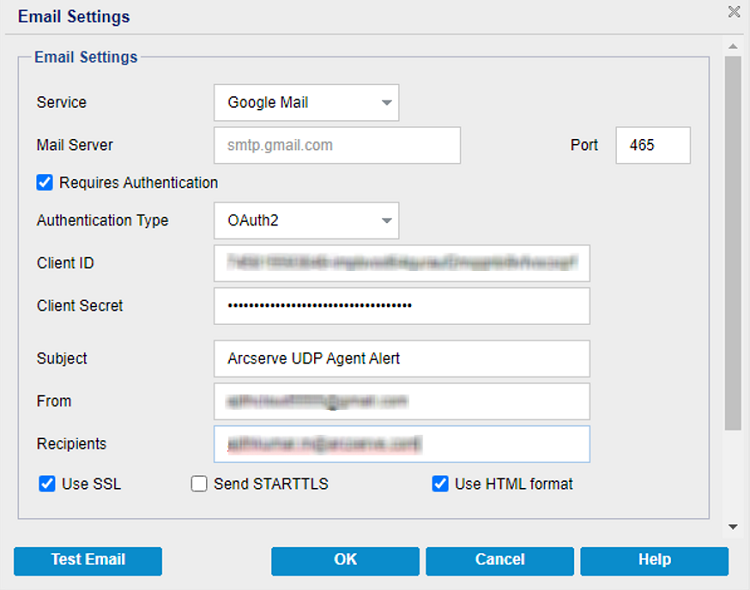
Service
The email provider service to use for sending the alert notifications. The available options are Google Mail, Yahoo Mail, Office 365/Outlook Mail, and Other.
- If you select Other, identify the mail server and corresponding port number used.
- If you select Google Mail, Yahoo Mail, or Office 365/Outlook Mail, the mail server and port number fields are automatically populated.
- Default: Other
Mail Server
The host name of the SMTP mail server that Arcserve UDP Agent (Windows) uses to send the email alerts.
Port
The output port number for the mail server.
Requires Authentication
Specifies if the mail server requires authentication when attempting to send an email through an Internet. When you select the Requires Authentication check box, the Authentication Type drop-down list gets populated.
Select one of the following:
Note: The OAuth2 option displays only if you select Office 365/Outlook Mail or Google Mail as the Service type.
- From the Authentication Type drop-down list, select Basic, and then specify the following details:
- Account Name: Type the user name or email address of the specified email server.
- Password: Type the password to authenticate.
- From the Authentication Type drop-down list, select OAuth2, and then specify the following details:
- Client ID: Specify the Client ID.
- Client Secret: Specify the Client Secret.
- Notes:
- For Office 365/Outlook Mail, provide the client ID and client secret of the Azure AD application that you have created. For more information about how to get the client ID and client secret, see How to Configure OAuth 2.0 Authentication for Office 365.
- For Google Mail, provide the client ID and client secret of the Gmail project that you have created. For more information about how to get the client ID and client secret, see How to Configure OAuth 2.0 Authentication for Google Mail.
 Basic
OAuth2
Basic
OAuth2
Subject
Specifies the subject description for the email alert notifications that Arcserve UDP Agent (Windows) sends.
Default: Arcserve UDP Agent Alert
From
Specifies the email address that Arcserve UDP Agent (Windows) uses to send the email alert notifications.
Recipients
Specifies the email address of the recipients who receives the email alert notifications.
Note: To enter multiple email addresses, separate each address with a semi-colon.
Use SSL
Specifies if the specified email server requires an SSL (Secure Sockets Layer) connection to transmit data securely through an Internet.
Send STARTTLS
Specifies if the specified email server requires STARTTLS (Start TLS extension) command that is issued to initiate a secure SMTP connection between servers.
Use HTML format
Email alert notifications are sent as HTML. If this option is not selected, the alerts are sent as plain text. By default, this option is selected.
Enable Proxy Settings
Specifies if you want to connect to a proxy server for sending your email alert notifications. When you select this option, provide the corresponding name of the proxy server and port number.
(Optional) Test Email
Specifies if you want to verify the recipients email ID is receiving email. We recommend you click the Test Email button and test before saving the details.
If you are configuring the email alerts for the first time, and you click the Test Email or OK button, you are redirected to a web page based on the service type you have selected.
- On the web page, do the following:
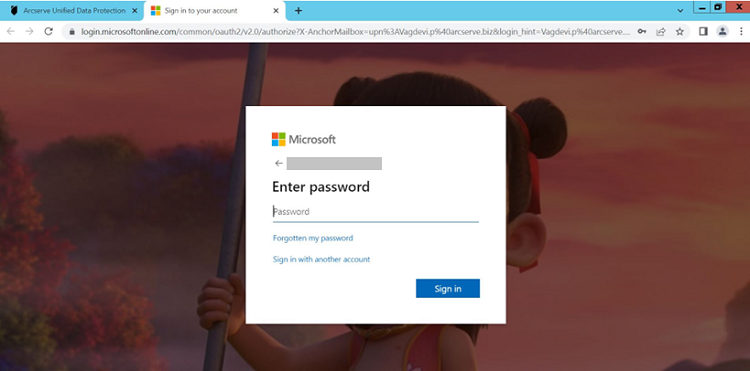
- Login using the O365 credentials.
-
- The success or failure message appears as follows:
- On successful authentication, the following message appears:
-

- On authentication failure, the following message appears:
-

- You can also observe an appropriate error on the UDP Console UI.
- Close the tab and go to the UDP Console.
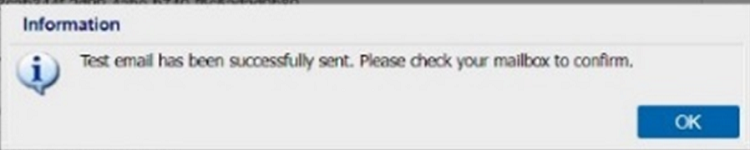
- On the Email Settings page, the Information dialog appears and informs you that the test email has been sent successfully.
- Click OK to close the dialog.
-
- On the web page, do the following:
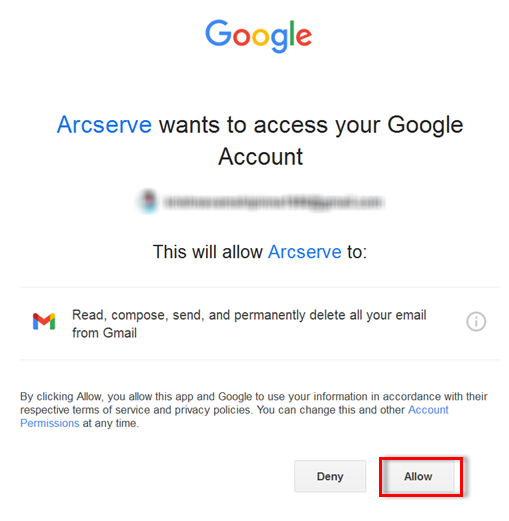
- Login using the Gmail credentials.
- Click Allow to grant consent for the Gmail service.
-
- The success or failure message appears as follows:
- On successful authentication, the following message appears:
-
- On authentication failure, the following message appears:
-
- You can also observe an appropriate error on the UDP Console UI.
- Close the tab and go to the UDP Console.
- On the Email Settings page, the Information dialog appears and informs you that the test email has been sent successfully.
- Click OK to close the dialog.
-
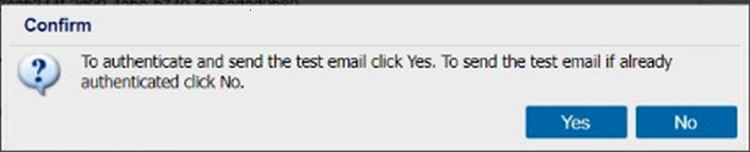
- On the confirmation dialog, do one of the following:
- To re-authenticate and send the test email, click Yes, and then follow the above-mentioned steps.
- To send the test email without re-authentication, click No.
-
For Office 365/Outlook Mail
For Google Mail
If you have already authenticated and click the Send A Test Email button, the confirmation dialog appears.
Send Email Alerts
Select the Discovered Nodes check box to configure Active Directory nodes that you can find using the Discover feature available for Nodes under the resources tab.
You have successfully configured the email settings and email alerts.