Import Settings
This section explains how to import the JSON file that contains the Windows Agent settings to the same or different Windows Agents.
Note: Before importing, you may modify the configuration values in the JSON file as required.
Follow these steps:
- Navigate to the Arcserve UDP Agent (Windows) home page or Arcserve UDP Agent (Windows) Monitor, and then select Settings from the taskbar.
- The Settings window opens.
- Note: When agent is managed by console and not protected in a plan, all the settings are still available.
- Under the Export/Import Settings side menu, select Import.
-
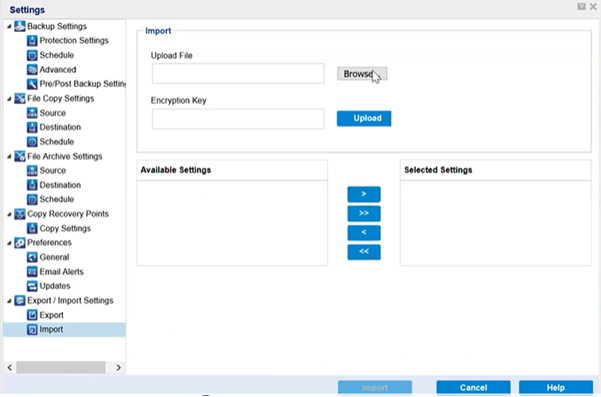
- For Import, do the following, and then click Upload:
- Upload File: Click the Browse button to locate and select the JSON file.
- Encryption Key: Type the encryption password you provided while exporting the settings.
- The settings display in the Available Settings box.
- To import the required settings, from the Available Settings box, select the preferred settings, and then click the right-arrow to move the settings to the Selected Settings box.
- Click Import.
- The Agent settings are successfully imported.