How to Integrate Arcserve UDP 7.0 with Active Directory Using Windows Groups
The existing feature of Role Based Administration (UDP-RBA) allows management of UDP permissions based on Active Directory (AD) groups. In the previous version of UDP-RBA, only individual AD user accounts were supported. Now, AD groups can serve as RBA roles.
The LDAP Read-only secondary user store is automatically added by running a utility.
Follow these steps:
- Launch the Command Prompt and run C:\Program Files\Arcserve\Unified Data Protection\Management\BIN.
- Run the DomainAuthTool.bat utility.
- The following information appears on the screen:
-
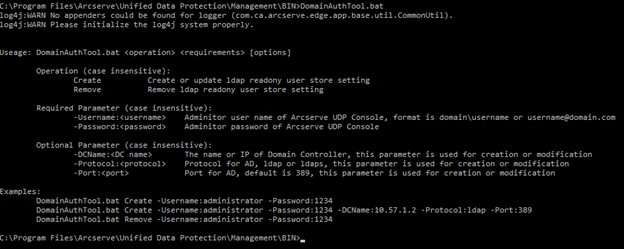
- Create an LDAP read-only secondary user store and at the same time modify the optional parameters. For example: Refer to the yellow marked command in the screenshot below.
- Assign the local user role.
- To add permission for the LDAP read-only domain users, perform the following steps:
- Join the group from Domain Controller.
- Add Arcserve UDP permission for the corresponding group as displayed in the screenshot below.
- (Optional) Remove the LDAP user store with utility.
-
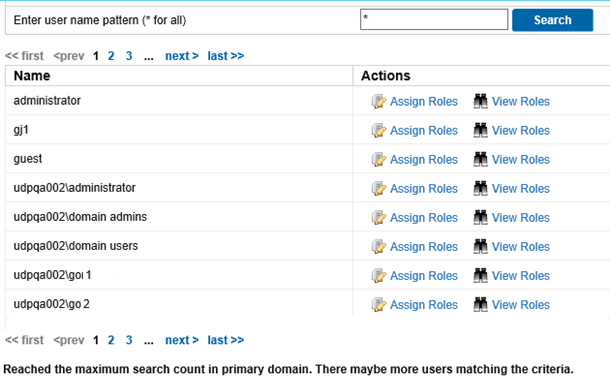

For more information, see Assign a Pre-defined Role.
Note: Assigning the local default role directly to the read-only domain users is not possible.
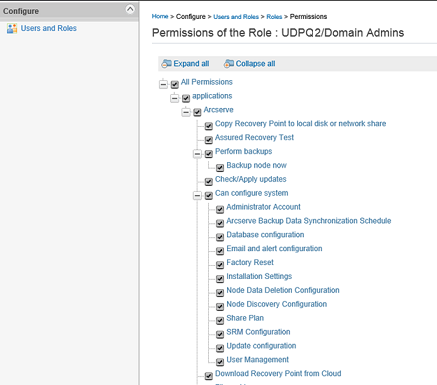
The user can now log on to Arcserve UDP console with specific permission.
Run the utility to remove the LDAP user store. Then, restart the management service and the previous domain user is listed as displayed below.