

利用 UNIX 與 Linux 資料移動器,讓您能夠將檔案系統和 Oracle 資料庫備份提交到從本機附加的檔案系統裝置及共用磁帶櫃。
附註:Arcserve Backup does not support backing up data that resides on data mover servers using various Arcserve Backup functionality such as multiplexing, server-side encryption, and CA Antivirus.如需詳細資訊,請參閱〈UNIX 與 Linux 資料移動器限制〉。
將資料備份到 UNIX 與 Linux 資料移動器伺服器
按一下 [正常備份],然後按一下 [來源] 索引標籤。
此時會出現來源樹狀目錄。
找到資料移動器伺服器,並選取您希望備份的來源。
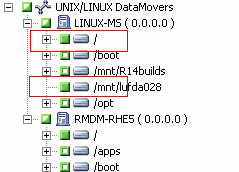
附註:For more information about scheduling jobs, see the Administration Guide.
展開目前的資料移動器伺服器,並指定要儲存備份資料的位置。
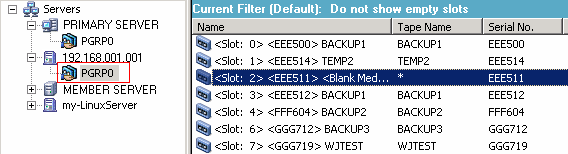
重要!如果 [來源] 索引標籤上指定的資料移動器伺服器未共用 [目標] 索引標籤上所指定的裝置群組,Arcserve Backup 將會使您無法提交備份工作。
附註:For more information about backup options, see the Administration Guide.
The Submit Job dialog opens.
即會提交工作。
|
Copyright © 2016
|
|