

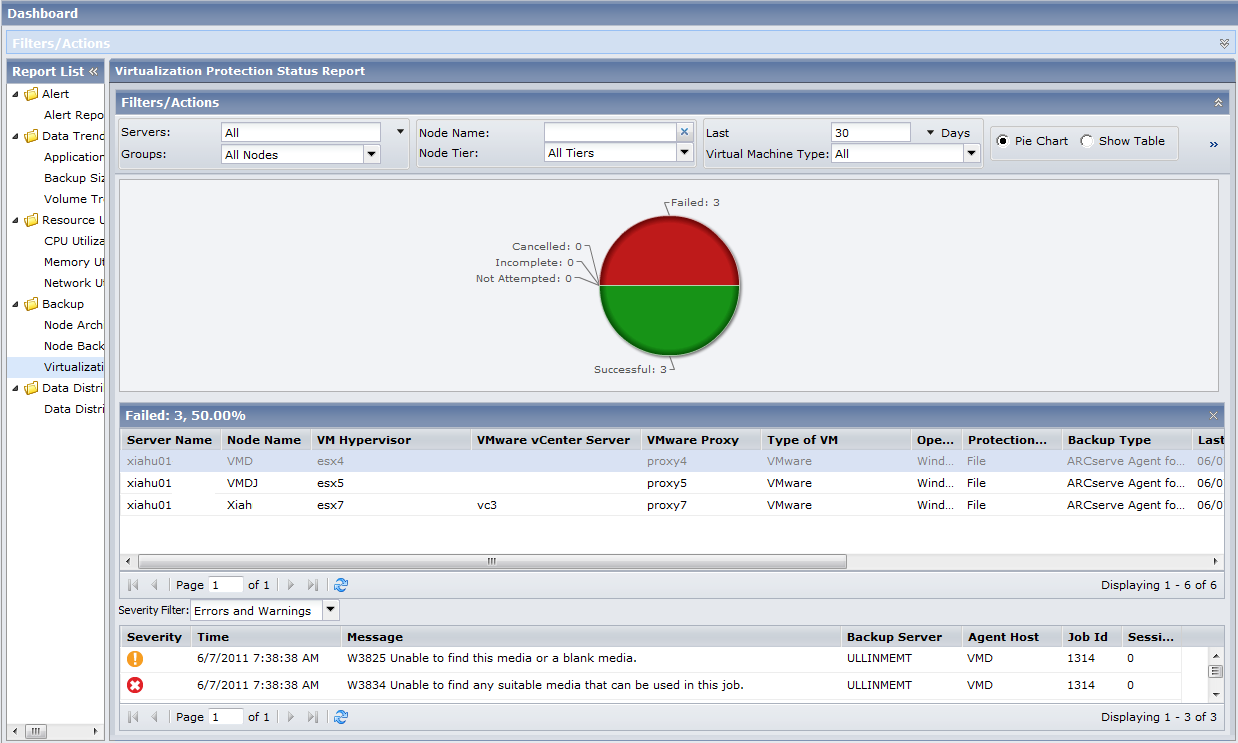
The Virtualization Protection Status Report can be further expanded from the Pie chart or Show Table view to display a drill-down report filtered by the selected category.
The following sample contains detailed information for the Virtualization Protection Status Report in Pie view:
The following sample contains detailed information for the Virtualization Protection Status Report in Table view:
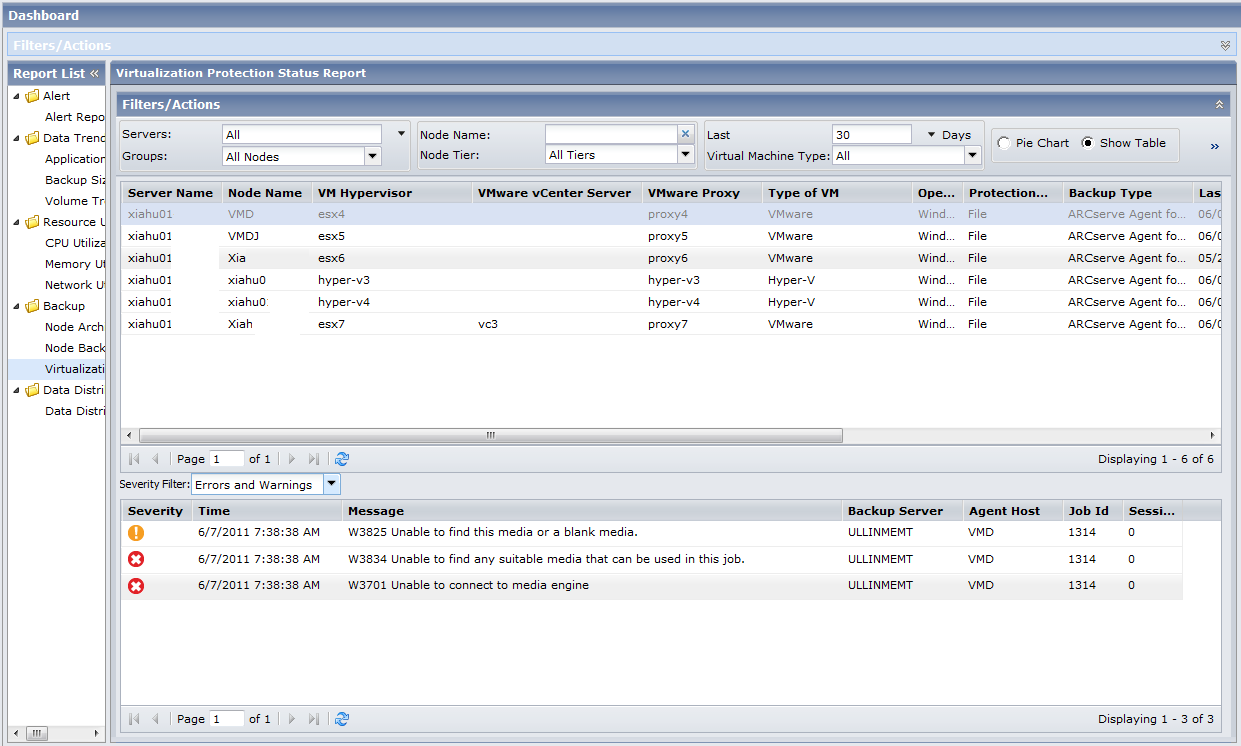
The drill-down report includes the following information for each column name based on the type of backup job performed:
Note: To retrieve data for the type of backup job performed, do the following:
|
Column Name |
CA ARCserve Backup Agent for Virtual Machines |
CA ARCserve Central Host-Based VM Backup |
CA ARCserve Central Virtual Standby |
|---|---|---|---|
|
Server Name |
<CA ARCserve Backup Primary Server Host Name> |
<Proxy Host Name> |
<Source Host Name> |
|
Nodes Name |
<Virtual Machine Host Name> |
<Virtual Machine Host Name> (Power-on virtual machine) |
<Source Host Name> |
|
Virtual Machine Hypervisor |
<Virtual Machine name of the Hyper-V server> (via Hyper-V) <Virtual Machine name of the ESX server> (via ESX/ESXi) <Virtual Machine name of the ESX server> (via vCenter) |
<Virtual Machine name of the ESX server> (via vCenter) <Virtual Machine name of the ESX server> (via ESX/ESXi) |
<Virtual Machine name of the ESX server> (via vCenter) <Virtual Machine name of the ESX server> (via ESX) <Virtual Machine name of the Hyper-V server> (via Hyper-V) |
|
VMware vCenter Server |
<Virtual Machine name of the vCenter server provided by the user> |
<Virtual Machine name of the vCenter server provided by the user> |
<Virtual Machine name of the vCenter server provided by the user> |
|
VMware Proxy |
<Proxy Host Name> |
<Proxy Host Name> |
<Monitor Host Name> Note: The <Monitor Host Name> is displayed only if it is used as a proxy for data transfer. |
|
Type of Virtual Machine |
'VMware' or 'Hyper-V' |
'VMware' |
'VMware' or 'Hyper-V' |
|
Operating System |
'Windows' or 'Linux' |
'Windows' |
'Windows' |
|
Protection Mode |
'RAW' or 'File' (based on backup type) |
'CA ARCserve Central Host-Based VM Backup' |
'CA ARCserve Central Virtual Standby' |
|
Backup Type |
'CA ARCserve Backup Agent for Virtual Machines' |
'CA ARCserve Central Host-Based VM Backup' |
'CA ARCserve Central Virtual Standby on VMware' or 'CA ARCserve Central Virtual Standby on Hyper-V' |
|
Last Backup Time |
<Time of last backup> |
<Time of last backup> |
<Time of last conversion> |
|
Type of Recovery |
'RAW' or 'File' (based on backup type) |
'VM/File/App' (Power-on virtual machine) or 'VM' (Power-off virtual machine) |
'Power-on VM' (Power-on virtual machine) or 'V2P' (Virtual to Physical) |
|
Most Recent Recovery Point |
<Time of the most recent recovery point> |
<Time of the most recent recovery point> |
<Time of the most recent conversion> |
|
Last Backup Status |
'Successful', 'Failed', or 'Cancelled' |
'Successful', 'Failed', or 'Cancelled' |
'Successful', 'Failed', or 'Canceled' |
You can find descriptions for each field below:
Note: VMware vCenter Server allows for the management of multiple ESX servers and virtual machines (VMs) from different ESX servers through a single console application.
You can then drill down further in this report by clicking on the name of an individual node to display a listing of all log messages associated with that node. You can also filter the list by specifying the severity of the messages displayed (Error & Warning, Error, Warning, Information, or All).
Be aware of the following:
|
Copyright © 2013 CA.
All rights reserved.
|
|