Setting Up a Cloud Storage Sub-Account
Using the Arcserve Cloud Cyber Resilience Storage also requires setting up a Cloud Storage sub-account. Cloud Storage Sub-Accounts are setup up in the MSP portal.
There can be as many sub-accounts for a single parent account as are needed.
- In the MSP portal click Managed Services from the left navigation panel.
- This will expand the list of Managed Services options.
-
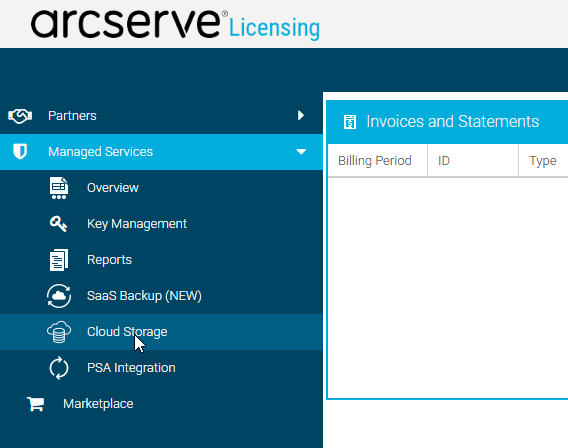
- Click Cloud Storage.
- This will take you into the MSP Cloud Storage area.
- Click Cloud Storage Sub-Account Setup.
-
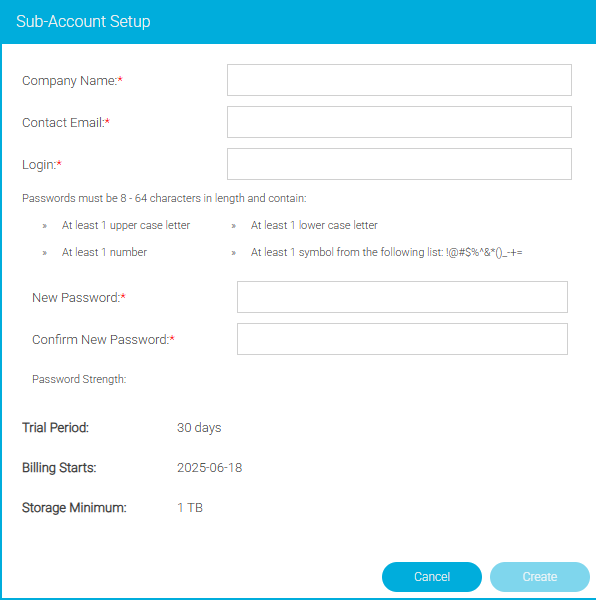
- Enter the Company Name (Required).
- Enter the Contact Email (Required).
- Enter the Login name (Required).
- Enter the New Password (Required).
- Passwords must be 8 to 64 characters long and contain at least 1 upper case letter, 1 lower case letter, one number, and one symbol.
- Confirm the New Password.
- Click Create
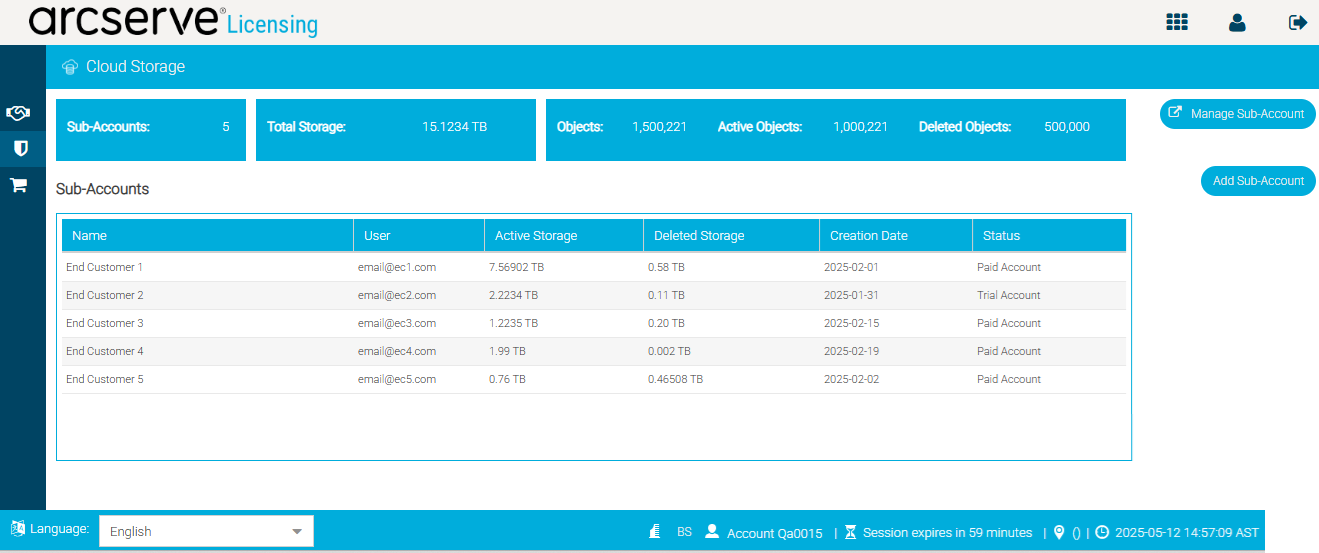
- Click Manage Sub-Accounts to enter the Cloud Storage Portal where you can Create Arcserve Cloud Cyber Resilient Storage Buckets.
The Cloud Storage Sub-Accounts page will display the number of sub-accounts you have, the total storage used, the number of objects and whether they are active or deleted, along with other sub-account information and options.
Important: There is a 30 day trial period. There is a minimum storage of 1TB and the billing starts after the 30 day trial. Please note the date when your billing starts.