Ad-hoc Virtual Standby to Microsoft Hyper-V
The Ad-hoc Virtual Standby machine is created by converting the recovery points to a Microsoft Hyper-V machine format. Standby VM contains same data, same number of disks, and network configurations as Source node.
This section provides the information on how to create an Ad-hoc Virtual Standby Machine to Microsoft Hyper-V hypervisor.
Notes:
- The Virtual Standby task runs only if the backup task creates a valid recovery point snapshot.
- The Ad-hoc VSB sources will not be listed under Virtual Standby in the left pane of the resources tab.
Follow these steps:
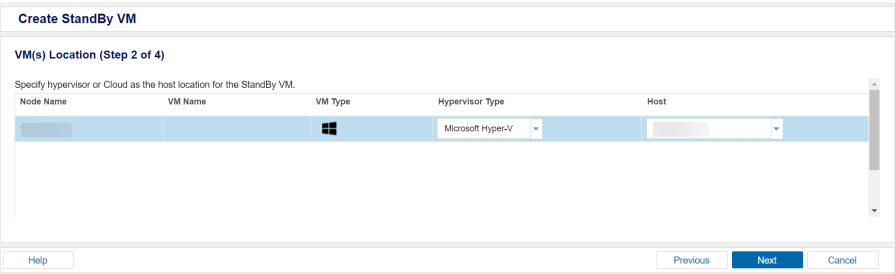
- On the VM(s) Location Step (2 of 4) screen, specify the hypervisor details for the ad-hoc standby VM.
- For Hypervisor Type, from the drop-down list, select Microsoft Hyper-V as the hypervisor.
- For Host, from the drop-down list, select the existing hypervisor or add a new hypervisor.
- To add a new hypervisor, follow these steps:
- From the Host drop-down list, click +Add New Hypervisor.
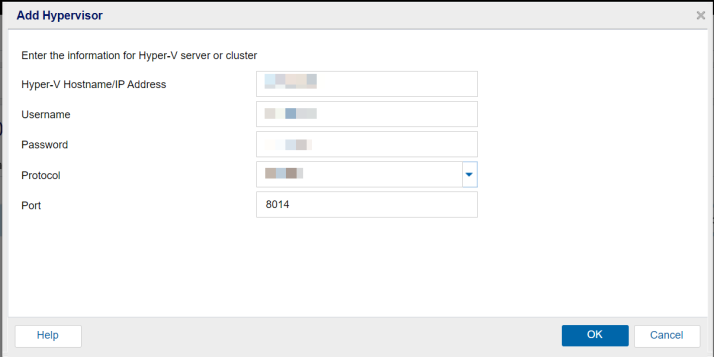
- On the Add Hypervisor dialog, provide the following details as needed, and then click OK:
-
- The new hypervisor is added as a host for Ad-hoc Standby VM.
-
- Click Next.
Hyper-V Hostname/IP Address
Specifies the host name of the Hyper-V system.
Username
Specifies the username that is required to log into the Hyper-V system.
Note: Make sure to use an administrative account or an account with administrative privileges on the Hyper-V system.
Password
Specifies the password for the username that is required to log into the Hyper-V system.
Protocol
Select HTTPS as protocol you want to use for communication between the Arcserve UDP server and the Hyper-V Server system (monitoring server).
Port
Specifies the port you want to use for data transfer between the Arcserve UDP server and the Hyper-V Server system (monitoring server). The default port is 8014.
The Virtual Machine(s) Settings screen appears.