How to Configure Concurrent Virtual Standby Machines
This section provides information about how to configure concurrent Virtual Standby Machine(s).
You can configure concurrent Virtual Standby Machine(s) from Arcserve UDP Console using the Standby VM dialog.
Follow these steps:
- Log into Arcserve UDP Console.
- On the UDP console page, click the resources tab.
- From the left pane, navigate to Nodes > All Nodes.
- The list of existing nodes appears on the center pane.
-
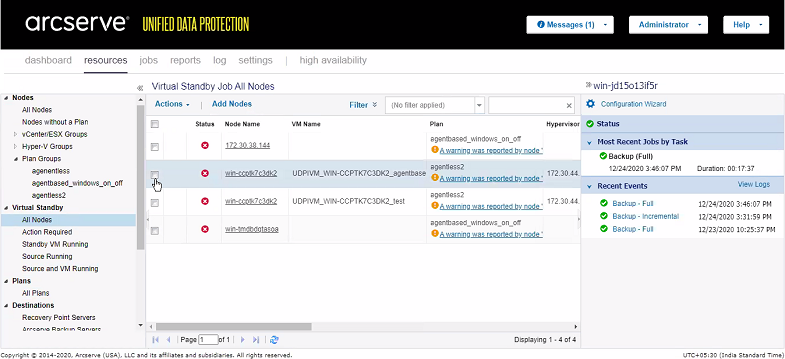
- Select one or more nodes that are already associated with a plan.
- Note: If a node is not associated with any plan, the Standby VM option does not appear.
-
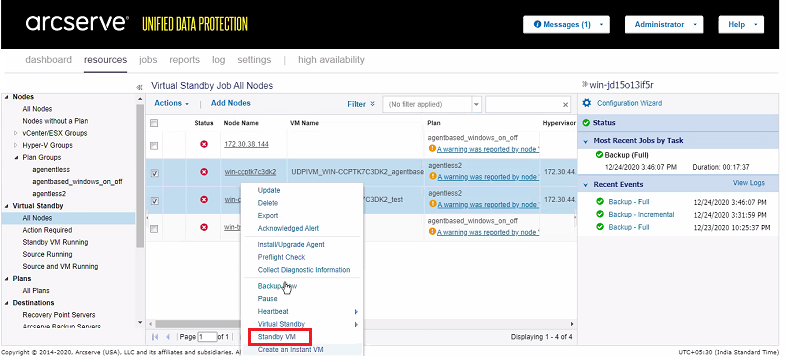
- Right-click the selected nodes, and then select the Standby VM option.
- The Standby VM dialog appears with the list of selected nodes.
-
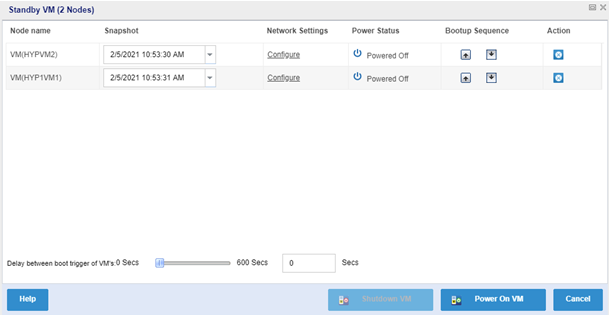
- On the Standby VM dialog, do the following:
- Power On VM
- Note: This option is enabled only for the powered off virtual standby machines.
- To power on virtual machines concurrently, follow these steps:
- From the list of selected nodes, for each node, perform the following:
- For Snapshot, from the drop-down list, select the date and time of the recovery point snapshot.
- Note: The Snapshot details appear only when the VSB job completes successfully.
- For Network Settings, select the Configure link. For more information, see Configure the Standby VM Network.
- For Bootup Sequence, click the up or down button to prioritize the Standby VM’s bootup sequence.
- Under Action, click the blue-colored cross icon to remove the node.
- (Optional) For Delay between boot trigger of VMs, type the delay time in the range of 0 to 600 secs.
- Note: You can also use the slider to set the delay time.
- Click Power On VM.
- The Standby VM(s) are powered on concurrently using the data contained in the recovery point snapshot.
- Shutdown VM
- To shut down the virtual standby machines concurrently, click Shutdown VM.
- Note: This option is enabled only for the powered on virtual standby machines.